> ## Documentation Index
> Fetch the complete documentation index at: https://help.pantaos.com/llms.txt
> Use this file to discover all available pages before exploring further.
# Team Management
> Create teams, assign members and assistants, and manage team configuration in the Admin Panel Teams tab.
## What It Is
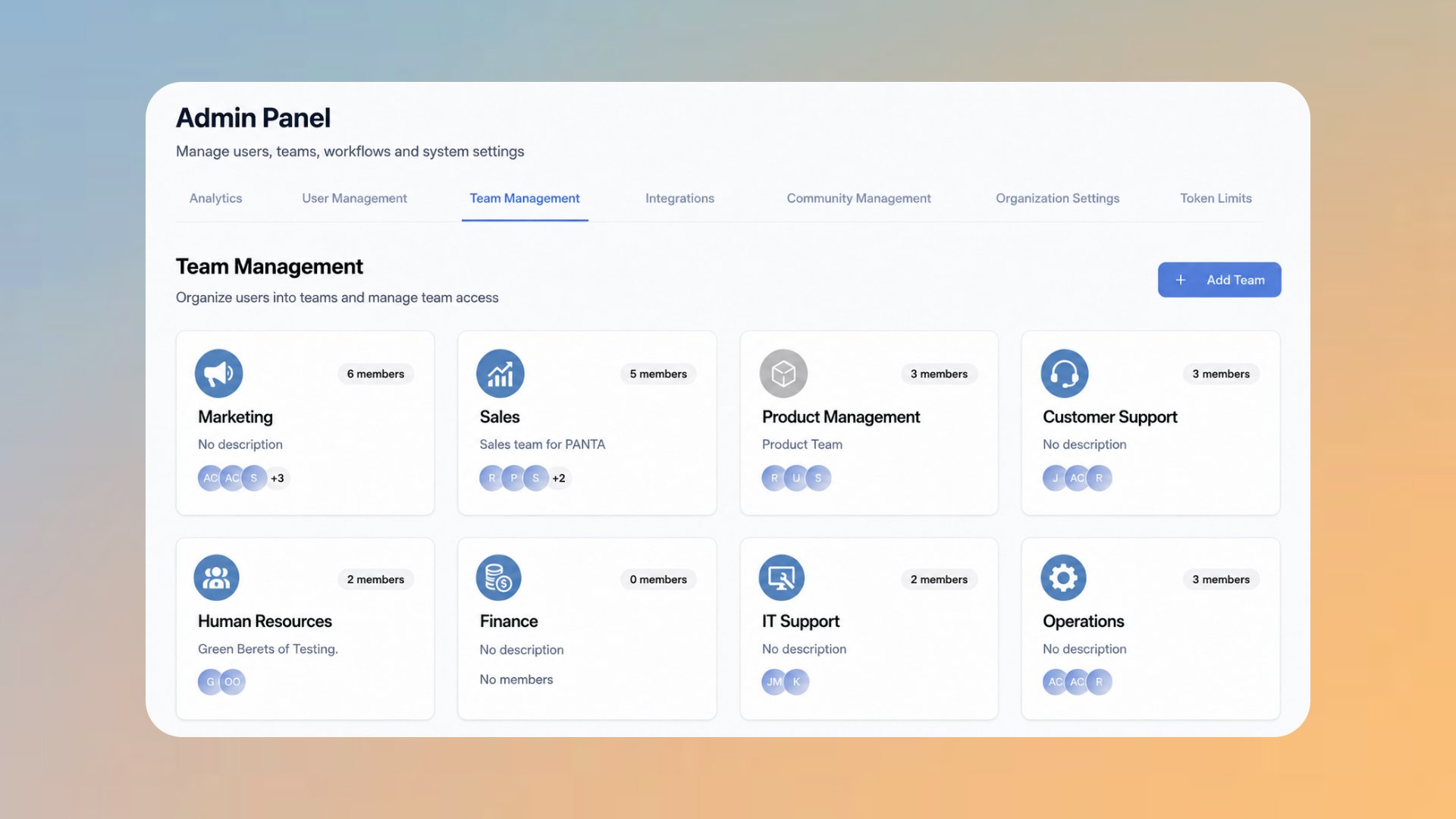
Team Management is the section of the Admin Panel where administrators organize users into named groups. It opens under **Admin Panel → Teams** and lists every team in the workspace as a card, with quick access to members and team configuration.
Teams are how PANTA OS reflects organizational structure inside the workspace. A user can belong to one team or several. Assistants can be assigned to specific teams through the Admin Panel, which determines who sees them in the Dashboard grid.
 ## Why It Matters
Teams give the workspace a structure that maps to how the organization already works.
Group users by department, function, or project. A team makes membership explicit instead of relying on naming conventions.
Assistants can be assigned to specific teams through the Admin Panel. Public assistants reach the teams they belong to; not every assistant has to be workspace wide.
Posts created in the Community Feed can be sent to specific teams, so HR updates reach HR and Engineering changes reach Engineering.
A user can belong to multiple teams at once. People who sit across functions do not need to be modeled as duplicates.
## How To Use It
Click Admin at the bottom of the sidebar. Visible to administrators only.
Switch to the Teams tab.
Each team appears as a card with its color icon, member count, name, and description.
Click a team card to open the team configuration in a modal. Four tabs organize the settings: General, Members, Assistants, Account actions.
## Creating a Team
The button at the top right of the Team Management section opens the new team dialog.
Team name is required. Use the same name your organization uses internally.
Upload team image accepts PNG or JPEG up to 2 MB. The image replaces the color icon on the team card. If you do this step, you will not select a team colour (below).
Team color selects the icon color used when no image is uploaded. Five colors are available that are based on your company branding.
Description is shown under the team name on the team card. Helps members and administrators understand the team's purpose at a glance.
Click Create team to create the team, or Cancel to discard the inputs. The new team appears as a card in the list.
## The Team Modal
Once a team is open, four tabs organize its configuration.
Basic team settings. Edit Team name, Description, Team image, and Team color. Save with Save changes.
Members of the team. Manage who belongs to the team here.
Assistants assigned to the team. Once an assistant is made public by its creator, administrators can assign it here to specific teams.
Critical team operations. Includes Delete team, which permanently removes the team. The action is irreversible; the dialog warns "Once you delete a team, there is no going back."
## Key Settings or Options
The display name of the team. Editable later under General.
Visual identifier for the team card. PNG or JPEG up to 2 MB, or one of five preset colors.
Optional short description shown on the team card.
Managed in the Members tab of the team modal. Each user can belong to multiple teams.
Managed in the Assistants tab of the team modal. Public assistants can be assigned to one or more teams.
In the Account actions tab. Permanent and irreversible; use carefully.
## Tips and Best Practices
* Mirror the organizational structure. Map teams to the units your organization already uses; do not invent new structures just for the platform.
* Use the description field. A short line under the team name saves administrators from guessing what the team is for.
* Assign assistants deliberately. A specialized HR assistant in the HR team is more useful than the same assistant exposed to the whole workspace.
* Keep team membership current. Teams that include former members make it harder to scope content correctly.
* Be deliberate about deletion. The Account actions tab makes the irreversibility explicit; a deletion mistake cannot be undone.
Roles in PANTA OS are workspace wide (Admin or User), not team specific. There is no "team admin" or "team owner" tier. Membership in a team does not change a user's role.
## Help Center
Open Admin Panel from the bottom of the sidebar, then switch to the Teams tab.
Yes. A user can belong to multiple teams at the same time. People who work across functions do not need duplicate accounts.
No. PANTA OS has two roles workspace wide: Admin and User. Membership in a team does not grant team specific administration rights; only workspace administrators manage teams.
Open the team and switch to the Assistants tab. Assistants made public by their creator can be assigned here. Private assistants stay with the user who created them.
No. Team deletion through the Account actions tab is permanent. The dialog warns about this before confirmation; once a team is deleted, it cannot be restored.
The assistants themselves are not deleted with the team; they remain visible to their creators. Only the team to team assignment is removed when the team is deleted.
## Why It Matters
Teams give the workspace a structure that maps to how the organization already works.
Group users by department, function, or project. A team makes membership explicit instead of relying on naming conventions.
Assistants can be assigned to specific teams through the Admin Panel. Public assistants reach the teams they belong to; not every assistant has to be workspace wide.
Posts created in the Community Feed can be sent to specific teams, so HR updates reach HR and Engineering changes reach Engineering.
A user can belong to multiple teams at once. People who sit across functions do not need to be modeled as duplicates.
## How To Use It
Click Admin at the bottom of the sidebar. Visible to administrators only.
Switch to the Teams tab.
Each team appears as a card with its color icon, member count, name, and description.
Click a team card to open the team configuration in a modal. Four tabs organize the settings: General, Members, Assistants, Account actions.
## Creating a Team
The button at the top right of the Team Management section opens the new team dialog.
Team name is required. Use the same name your organization uses internally.
Upload team image accepts PNG or JPEG up to 2 MB. The image replaces the color icon on the team card. If you do this step, you will not select a team colour (below).
Team color selects the icon color used when no image is uploaded. Five colors are available that are based on your company branding.
Description is shown under the team name on the team card. Helps members and administrators understand the team's purpose at a glance.
Click Create team to create the team, or Cancel to discard the inputs. The new team appears as a card in the list.
## The Team Modal
Once a team is open, four tabs organize its configuration.
Basic team settings. Edit Team name, Description, Team image, and Team color. Save with Save changes.
Members of the team. Manage who belongs to the team here.
Assistants assigned to the team. Once an assistant is made public by its creator, administrators can assign it here to specific teams.
Critical team operations. Includes Delete team, which permanently removes the team. The action is irreversible; the dialog warns "Once you delete a team, there is no going back."
## Key Settings or Options
The display name of the team. Editable later under General.
Visual identifier for the team card. PNG or JPEG up to 2 MB, or one of five preset colors.
Optional short description shown on the team card.
Managed in the Members tab of the team modal. Each user can belong to multiple teams.
Managed in the Assistants tab of the team modal. Public assistants can be assigned to one or more teams.
In the Account actions tab. Permanent and irreversible; use carefully.
## Tips and Best Practices
* Mirror the organizational structure. Map teams to the units your organization already uses; do not invent new structures just for the platform.
* Use the description field. A short line under the team name saves administrators from guessing what the team is for.
* Assign assistants deliberately. A specialized HR assistant in the HR team is more useful than the same assistant exposed to the whole workspace.
* Keep team membership current. Teams that include former members make it harder to scope content correctly.
* Be deliberate about deletion. The Account actions tab makes the irreversibility explicit; a deletion mistake cannot be undone.
Roles in PANTA OS are workspace wide (Admin or User), not team specific. There is no "team admin" or "team owner" tier. Membership in a team does not change a user's role.
## Help Center
Open Admin Panel from the bottom of the sidebar, then switch to the Teams tab.
Yes. A user can belong to multiple teams at the same time. People who work across functions do not need duplicate accounts.
No. PANTA OS has two roles workspace wide: Admin and User. Membership in a team does not grant team specific administration rights; only workspace administrators manage teams.
Open the team and switch to the Assistants tab. Assistants made public by their creator can be assigned here. Private assistants stay with the user who created them.
No. Team deletion through the Account actions tab is permanent. The dialog warns about this before confirmation; once a team is deleted, it cannot be restored.
The assistants themselves are not deleted with the team; they remain visible to their creators. Only the team to team assignment is removed when the team is deleted.