> ## Documentation Index
> Fetch the complete documentation index at: https://help.pantaos.com/llms.txt
> Use this file to discover all available pages before exploring further.
# Auto Mode
> The default model selection in PANTA OS chats. PANTA OS picks a suitable model for the request without manual selection.
## What It Is
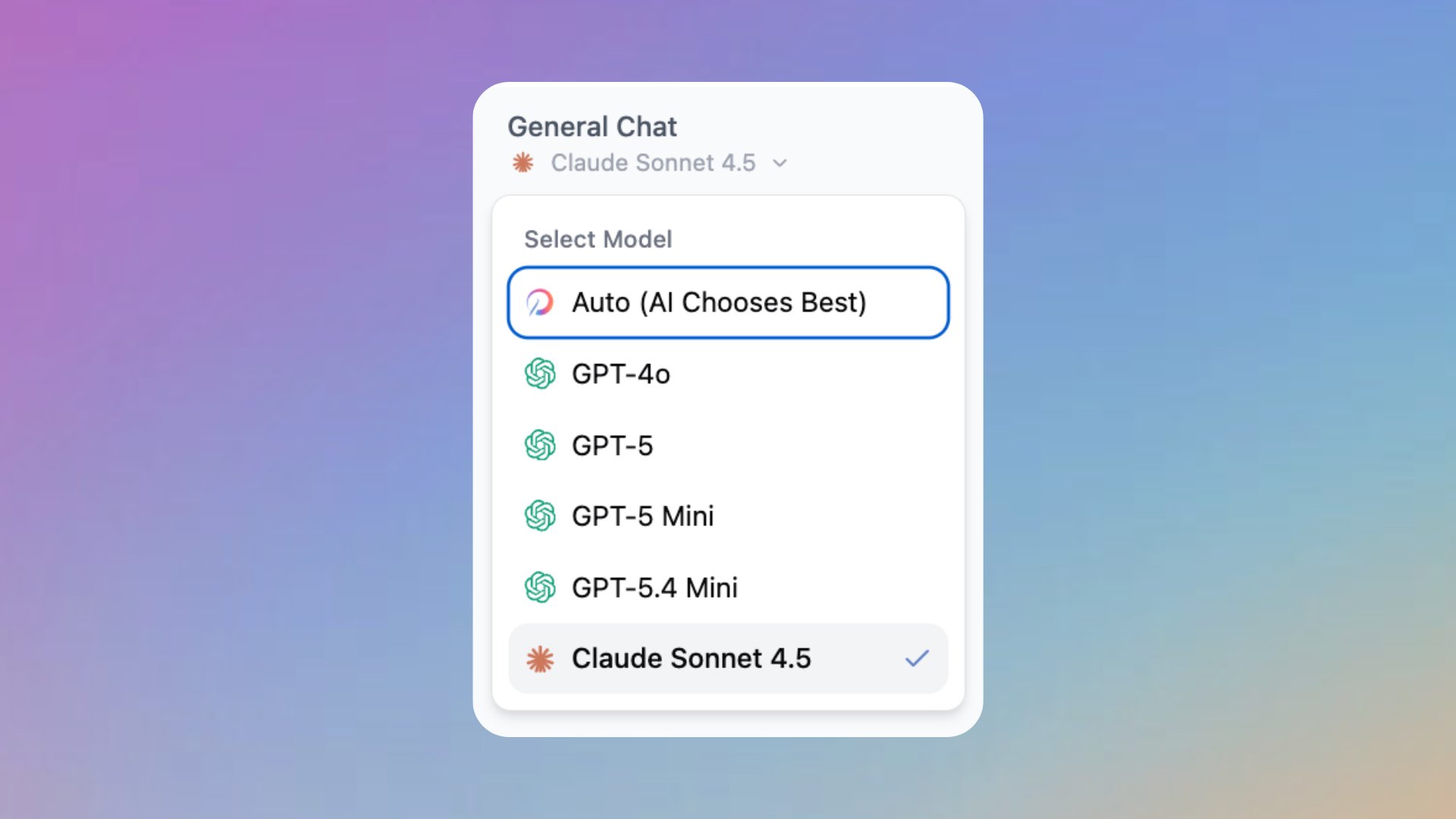
Auto Mode is the default selection in the model picker at the top of every chat. When Auto Mode is active, PANTA OS chooses a model for each request, and the user does not have to pick one manually.
The selection happens transparently in the background. The conversation continues without interruption; the user sees only the response.
 ## Why It Matters
For most everyday work, the model that produces the best answer is not the same one across tasks. Manually switching models for each prompt is friction. Auto Mode removes that friction.
The user types a prompt; PANTA OS picks the model. The interaction is the same as with any single model chat, just without the manual choice.
Routine requests do not need the most expensive model. Auto Mode keeps the simple cases simple.
Heavier requests can use a heavier model. The user does not have to recognize which kind of request they have.
The model picker still works. Switch from Auto Mode to a specific model at any time, per chat, when the output style matters.
## How It Works
Auto Mode appears as the first entry in the model selector dropdown at the top of every chat. The label is "Auto (AI Chooses Best)" and it is the default for new chats.
When the user sends a prompt, the platform routes the request to a model that fits. The conversation continues without any visible model switching.
## When To Use Auto Mode And When To Override
Drafting, summarizing, ad hoc questions, light analysis, and short conversations are well served by the automatic choice. The default exists for a reason.
Switch to a specific model when output style or determinism matters: a particular voice, a particular structure, or a task where you have learned that one model performs better.
For work that needs to be repeatable (for example a comparison test or a benchmark), pinning a specific model keeps the conditions stable.
If you have experience with a specific model for a specific task, use it directly. Auto Mode is the smart default, not a constraint.
## How to switch
Click the dropdown at the top of the chat header.
Choose any of the available frontier models. The selection applies to the current chat.
Open the dropdown again and pick Auto (AI Chooses Best) at the top of the list.
## Key Settings or Options
Auto Mode is the default for new chats across the workspace.
The model selector is per chat. Overriding Auto Mode in one chat does not change the default for other chats.
Assistants do not have their own model setting. When opened in a chat, the model selector at the top of the chat applies, with Auto Mode as the default.
Auto Mode is not configurable at the workspace level. It is on by default and cannot be turned off as a default.
## Tips and Best Practices
* Leave Auto Mode on for everyday work. The default exists because most tasks do not benefit from manual selection.
* Switch to a specific model when you have learned which one works best for a recurring task. The override is cheap; experimenting is fine.
* For a chat that needs to be exactly reproducible later, select the model first. Auto Mode is good for speed, not for benchmarking.
Auto Mode is a starting point, not a ceiling. If a specific model consistently produces better output for your work, use it. The platform is not opinionated about the override.
## Help center
PANTA OS picks a suitable model for each request automatically. The user does not have to choose a model; the interaction continues as if a single model was used.
Click the model selector at the top of the chat header and pick a specific model. The selection applies to the current chat. Other chats keep Auto Mode unless you change them too.
No. Auto Mode is the workspace default and is not configurable. To use a specific model, override it per chat through the model selector.
Yes. Assistants do not bring their own model setting. The model selector at the top of the chat applies inside an assistant chat the same way it does in a free form chat.
The chat does not display the routed model in the response. If you need to know which model answers, switch from Auto Mode to a specific model.
## Why It Matters
For most everyday work, the model that produces the best answer is not the same one across tasks. Manually switching models for each prompt is friction. Auto Mode removes that friction.
The user types a prompt; PANTA OS picks the model. The interaction is the same as with any single model chat, just without the manual choice.
Routine requests do not need the most expensive model. Auto Mode keeps the simple cases simple.
Heavier requests can use a heavier model. The user does not have to recognize which kind of request they have.
The model picker still works. Switch from Auto Mode to a specific model at any time, per chat, when the output style matters.
## How It Works
Auto Mode appears as the first entry in the model selector dropdown at the top of every chat. The label is "Auto (AI Chooses Best)" and it is the default for new chats.
When the user sends a prompt, the platform routes the request to a model that fits. The conversation continues without any visible model switching.
## When To Use Auto Mode And When To Override
Drafting, summarizing, ad hoc questions, light analysis, and short conversations are well served by the automatic choice. The default exists for a reason.
Switch to a specific model when output style or determinism matters: a particular voice, a particular structure, or a task where you have learned that one model performs better.
For work that needs to be repeatable (for example a comparison test or a benchmark), pinning a specific model keeps the conditions stable.
If you have experience with a specific model for a specific task, use it directly. Auto Mode is the smart default, not a constraint.
## How to switch
Click the dropdown at the top of the chat header.
Choose any of the available frontier models. The selection applies to the current chat.
Open the dropdown again and pick Auto (AI Chooses Best) at the top of the list.
## Key Settings or Options
Auto Mode is the default for new chats across the workspace.
The model selector is per chat. Overriding Auto Mode in one chat does not change the default for other chats.
Assistants do not have their own model setting. When opened in a chat, the model selector at the top of the chat applies, with Auto Mode as the default.
Auto Mode is not configurable at the workspace level. It is on by default and cannot be turned off as a default.
## Tips and Best Practices
* Leave Auto Mode on for everyday work. The default exists because most tasks do not benefit from manual selection.
* Switch to a specific model when you have learned which one works best for a recurring task. The override is cheap; experimenting is fine.
* For a chat that needs to be exactly reproducible later, select the model first. Auto Mode is good for speed, not for benchmarking.
Auto Mode is a starting point, not a ceiling. If a specific model consistently produces better output for your work, use it. The platform is not opinionated about the override.
## Help center
PANTA OS picks a suitable model for each request automatically. The user does not have to choose a model; the interaction continues as if a single model was used.
Click the model selector at the top of the chat header and pick a specific model. The selection applies to the current chat. Other chats keep Auto Mode unless you change them too.
No. Auto Mode is the workspace default and is not configurable. To use a specific model, override it per chat through the model selector.
Yes. Assistants do not bring their own model setting. The model selector at the top of the chat applies inside an assistant chat the same way it does in a free form chat.
The chat does not display the routed model in the response. If you need to know which model answers, switch from Auto Mode to a specific model.