
What it is
The Assistant Wizard is the guided creation flow for new assistants in PANTA OS. Instead of writing a system prompt from scratch, the wizard asks five short questions about your role, your task, and what makes it hard, and then generates a complete assistant configuration: name, description, tags, system prompt, Quick start actions, and an optional knowledge base. The wizard is one of two creation paths in PANTA OS. The second path is the Manual Assistant Creation, where you define every setting yourself, similar to a custom GPT. Both paths produce the same result: an assistant that lives in your workspace and can be shared across the team.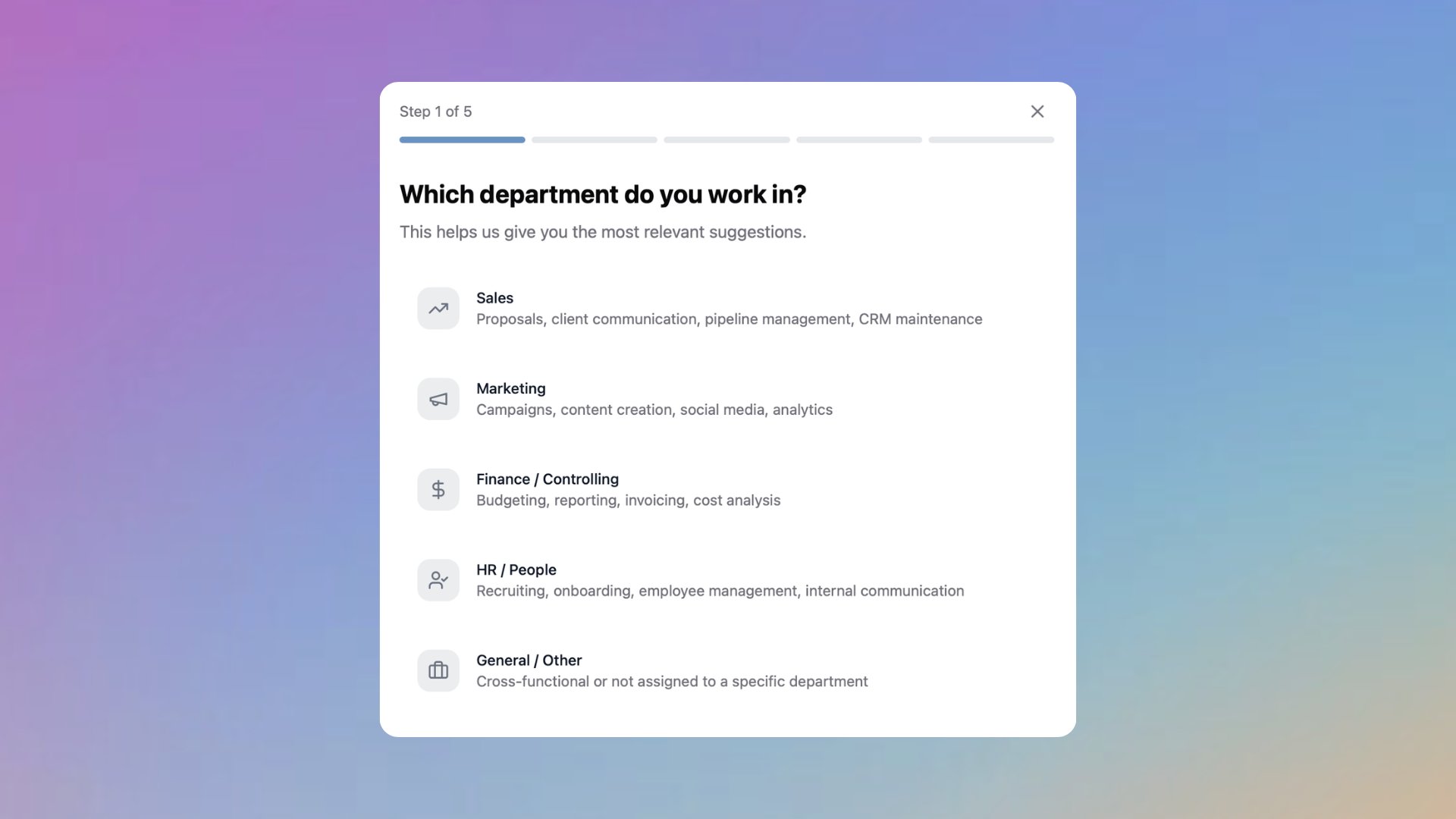
Why it matters
A well configured assistant is the most reused unit of value in your workspace. Most teams skip configuration because writing a good system prompt is hard, and an empty input field is intimidating. The wizard removes that barrier and has three concrete effects:- Quality: every setting is decided deliberately, based on a department template and a pain point mapping, not left to defaults.
- Speed: a complete, working assistant in under two minutes, instead of a blank configuration screen.
- Reuse: assistants built through the wizard follow the same shape, so they are easier to maintain, audit, and share.
How to use it
Open the Dashboard
Click Create Assistant at the top right of the Dashboard.
Choose AI Assistant Creation
Two cards appear: AI Assistant Creation and Manual Assistant Creation. Pick the magical path to run the wizard. Pick the manual path only if you already have a system prompt and want full control from the start.
Choose AI Assistant Creation
Two cards appear: AI Assistant Creation and Manual Assistant Creation. Pick the magical path to run the wizard. Pick the manual path only if you already have a system prompt and want full control from the start.
Select your department
Step 1 of 5: “Which department do you work in?”. Pick from Sales, Marketing, Finance / Controlling, HR / People, or General / Other. Each option shows a short list of typical activities. The choice loads the task list for the next step.
Pick the task to simplify
Step 2 of 5: “Which task would you like to simplify?”. Tasks are tailored to the department you picked. If your task is not listed, select Describe a different task at the bottom and write it in your own words.
Describe the pain point
Step 3 of 5: “What exactly makes this task difficult?”. Pick one of the suggested pain points, or describe your own. The pain point is the single biggest input into the generated system prompt, so be specific.
Add knowledge (optional)
Step 4 of 5: “Add knowledge base”. The wizard suggests file types that would help, with a one line reason for each. Drag and drop up to 5 files (PDF, DOCX, MD, TXT, XLSX, CSV, max 20 MB total), or click Skip to add knowledge later.
Review and create
Step 5 of 5: “Your assistant is ready”. The wizard generates a full preview: assistant name, description, department tag, count of Quick start actions, three Quick start actions, and the complete system prompt. Expand Show system prompt to read or edit it before publishing. Click Create Assistant to save it to your workspace, or Start Over to redo the flow.
What you can use it for
The wizard ships with department templates, but the underlying flow works for any text or knowledge driven task. The patterns below cover the most common starting points.Marketing
Campaign copy, social media planning, market research, performance reports.
Sales
Proposal drafting, client communication, pipeline summaries, CRM hygiene.
Finance / Controlling
Budget commentary, reporting narratives, invoice drafting, cost analysis.
HR / People
Job descriptions, onboarding plans, internal announcements, policy Q and A.
General / Other
Cross functional work, meeting prep, documentation, knowledge synthesis.
Custom tasks
Anything outside the templates. Use Describe a different task to bring the wizard to your own use case.
Key settings or options
Name and description
Generated from your department and task. Editable on the preview screen and later in assistant settings.
System prompt
Generated in markdown with role, responsibilities, and constraints. Editable before creation through Show system prompt on the preview screen.
Knowledge base
Optional file upload in step 4. Up to 5 files, 20 MB total. Documents are chunked and embedded automatically.
Quick start actions
Three prompts shown on the assistant landing page. Generated from your task and pain point.
Tags
Department tag applied automatically. Add personal tags later through the Manage tags dialog on the Dashboard.
Model
Assistants do not have their own model setting. When opened in a chat, the model selector at the top of the chat controls which model answers, with Auto Mode as the default.
Visibility
Defaults to Private. Change to Public through Privacy settings in the assistant configuration.
Tools
Connected tools (Microsoft 365, Google, Notion, GitHub, Microsoft Teams) are available to every assistant once the user has authorized them in Settings. Web search is always on and does not require authorization.
Tips and best practices
- Pick the most painful task, not the most common one. The wizard is sharper when the pain point is real.
- Be specific in Describe a different task. “Schedule blog posts across LinkedIn and Newsletter” beats “social media stuff”.
- Curate the knowledge base. Five clean documents beat fifty unfiltered ones, and the wizard caps at five for a reason.
- Read the generated system prompt before clicking Create. The output is good, not perfect, and small edits compound over hundreds of future conversations.
- Test the new assistant with three realistic prompts before sharing it with the team.
Help center
The wizard does not open after I click Create Assistant
The wizard does not open after I click Create Assistant
Reload the page and try again. If the modal still does not appear, check your browser console for blocked scripts. Ad blockers and aggressive privacy extensions can interfere with modal rendering.
My task is not in the list
My task is not in the list
Choose Describe a different task at the bottom of step 2. Write the task in one sentence, then describe the pain point in step 3 with the same level of detail. The wizard handles arbitrary tasks the same way it handles templates.
The personalized recommendations take long to load
The personalized recommendations take long to load
Between step 3 and step 4 the wizard generates suggestions through the model. Expect a few seconds. If the spinner stays on screen for more than a minute, close the modal, reload the page, and restart the flow.
My file upload fails
My file upload fails
Check the file format and size. The wizard accepts PDF, DOCX, MD, TXT, XLSX, and CSV, with a hard limit of 5 files and 20 MB total. Password protected PDFs and corrupted files are rejected. Scanned PDFs without an OCR layer upload but produce poor retrieval. Run them through OCR first, then upload again.
The generated system prompt is not what I want
The generated system prompt is not what I want
Expand Show system prompt in step 5 and edit directly in the textarea. You can also click Start Over to redo the wizard with different inputs, or create the assistant first and refine the prompt in assistant settings later.
I want to change the model
I want to change the model
Assistants do not have their own model setting. When you open the assistant in a chat, use the model selector at the top of the chat header to pick a specific model. Auto Mode is the default.
The assistant is private and my team cannot see it
The assistant is private and my team cannot see it
All wizard generated assistants are Private by default to prevent half configured assistants from leaking into the workspace. Open the assistant settings and change visibility to Public through Privacy settings to share it with the team.
I want full control over the system prompt from the start
I want full control over the system prompt from the start
Use the Manual Assistant Creation instead of the wizard. It opens an empty configuration screen where you set name, system prompt, knowledge, and visibility yourself, similar to a custom GPT.
The assistant gives generic answers despite my knowledge upload
The assistant gives generic answers despite my knowledge upload
Two common causes. First, the documents may not contain the specific information the model is being asked about. Open the assistant, ask a question that should hit the knowledge base, and check the cited sources. Second, the chunking may be suboptimal for very short or very long documents. Split long PDFs into topical sections and upload again.