
What It Is
Chat is the main conversational surface in PANTA OS. It supports text prompts, file uploads, and voice input as speech to text. A chat can run on the default model (Auto Mode), on a specific model from the dropdown, or on an assistant your team has built. The chat opens from three places: New Chat in the sidebar, the central chat input on the Dashboard, and by clicking an assistant or app card on the Dashboard grid.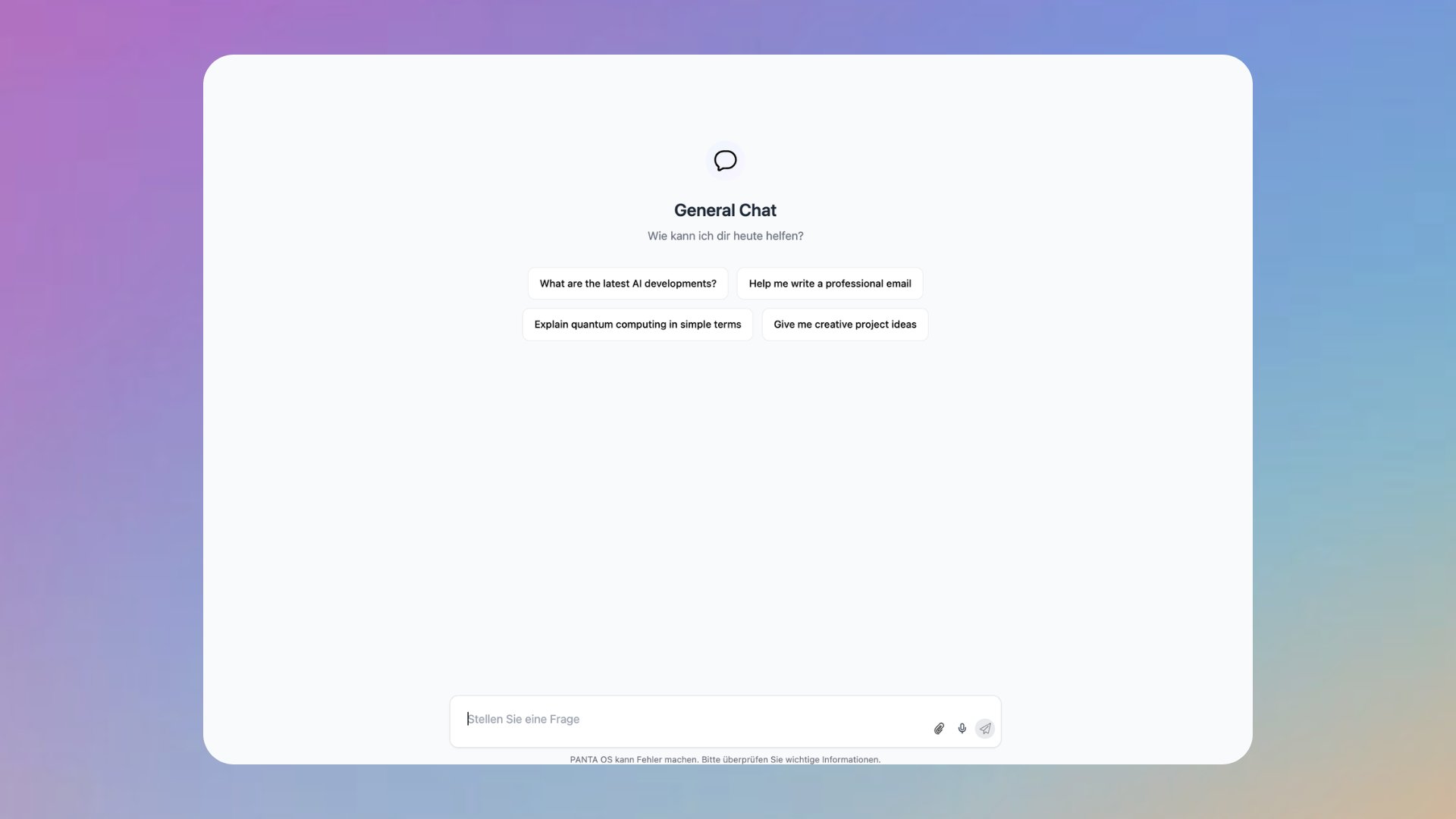
Why It Matters
Most users start in chat. It is the fastest path to:Ask and get answers
Type a prompt, get a response. No setup, no configuration, no preparation.
Work with files
Drop files into the chat and ask the model to read, summarize, extract, or transform them. Exports are available in Text (.txt), Markdown (.md), Word Document (.docx), CSV (.csv), and PDF (.pdf) formats.
Use voice for input
Click the microphone icon to dictate the prompt. PANTA OS converts speech to text in the input field.
Pick the model
Auto Mode is the default. Switch to a specific model in the dropdown at the top of the chat when output style or determinism matters.
How To Use It
Open a chat
Click New Chat in the sidebar, or type into the central chat input on the Dashboard. To use an assistant, click its card on the Dashboard grid.
Pick the model (optional)
The model selector at the top of the chat header lists Auto (AI Chooses Best) plus the available models. Auto is the default. See Auto Mode for details.
Type or speak the prompt
Type into the input, or click the microphone icon to dictate. The dictated text appears in the input field; review it before sending.
Attach files if needed
Click the paperclip icon to attach files to the message. The model uses the attached content as context for the response.
Send and read the response
Click the send icon to submit. The response appears below your message.
React to the response
Three small icons appear under each response: copy to clipboard, thumbs up, thumbs down. Use the thumbs to give feedback that improves the platform over time.
Continue the conversation
Send follow up turns to refine, expand, or change the format. Each response uses the full conversation as context.
Free Chat and Assistant Chat
Free chat
No assistant attached. The selected model answers from general knowledge, with web search running automatically when the request needs fresh information.
Assistant chat
A chat opened against a specialized assistant. The assistant brings its own system prompt, optional knowledge base, and quick start actions. The model selector at the top still controls which model answers.
Key Settings or Options
Model selector
Top of the chat header. Auto Mode plus the available models (GPT and Claude families). Switchable per chat.
Prompt input
Plain text input at the bottom of the chat. Sends on click of the send icon.
Paperclip icon
Attaches files to the message. The model reads the attached content as context.
Microphone icon
Records speech and converts it to text in the input field. Speech to text only; PANTA OS does not speak responses out loud.
Feedback icons
Copy, thumbs up, and thumbs down appear under each response. Thumbs feedback helps improve the platform.
Strict Mode reminder
A small tooltip near the input reminds you whether Strict Mode is active. Toggle the mode under Settings, Integrations tab, Security & Control section.
History
Past chats are saved automatically and accessible from the History entry in the sidebar.
Tips and Best Practices
- Be specific about what you want. Describe role, task, audience, and format in the prompt; vague prompts produce vague answers.
- Attach the source material instead of describing it. The model performs better on real input than on summaries.
- Use follow up turns to refine. Iteration usually beats one shot perfection, especially on longer outputs.
- Leave Auto Mode on for everyday work. Switch to a specific model only when output style or determinism matters.
- Keep Strict Mode on when an assistant has permission to take actions through a connected integration. It catches mistakes before they leave your account.
Help Center
How do I switch models in a chat
How do I switch models in a chat
Open the model selector at the top of the chat header and pick a specific model. The selection applies to the current conversation. Set it back to Auto to let PANTA OS pick again.
Can I dictate prompts by voice
Can I dictate prompts by voice
Yes. Click the microphone icon in the chat input; PANTA OS converts your speech to text in the input field. Review it before sending. PANTA OS does not read responses out loud.
What kinds of files can I attach
What kinds of files can I attach
Attach files through the paperclip icon in the chat input. Accepeted file types include: PDF, DOCX, MD, TXT, XLSX, CSV, max 20 MB total. Exports are available in Text (.txt), Markdown (.md), Word Document (.docx), CSV (.csv), and PDF (.pdf) formats.
Where are my past chats
Where are my past chats
In the History entry in the sidebar. The most recent chats are also listed under the History section in the lower half of the sidebar for one click access.
What does the thumbs feedback do
What does the thumbs feedback do
Thumbs feedback is recorded against the response. It does not change the current answer, but it helps the platform improve over time.
What is Strict Mode and why does it matter in chat
What is Strict Mode and why does it matter in chat
Strict Mode requires your explicit approval before connected integrations perform sensitive actions like sending emails or creating calendar events. In a chat where an assistant could trigger such actions, Strict Mode is the safety net that stops the action before it executes.
Can PANTA OS make mistakes
Can PANTA OS make mistakes
Yes. PANTA OS shows a disclaimer below the input: “PANTA OS can make mistakes. Please verify important information.” Verify important answers before acting on them.