
What It Is
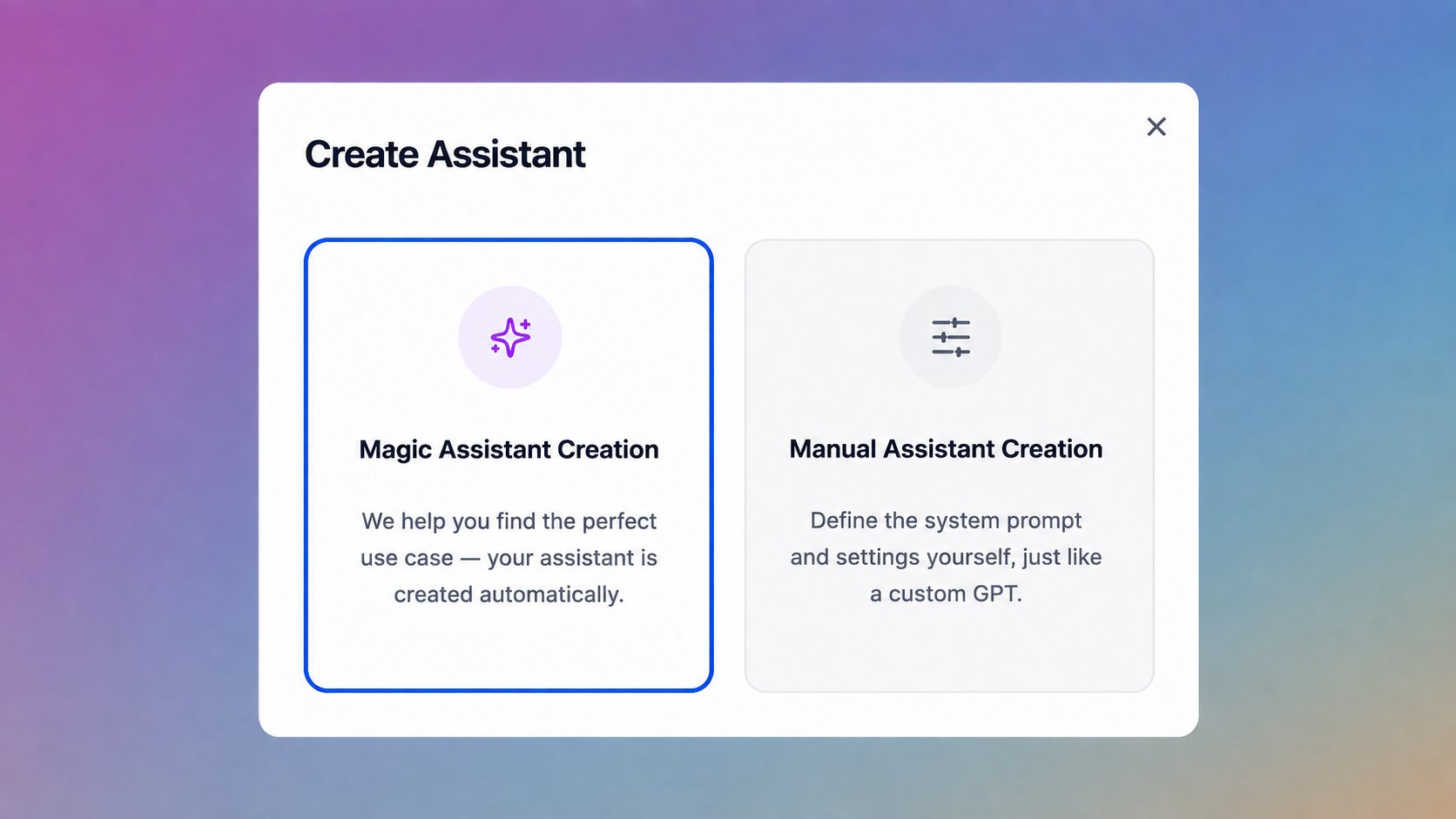
An assistant is a custom AI helper your team builds for a specific job. It combines a name, a description, a system prompt, optional knowledge files, optional Quick start actions, and a visibility setting. Once published, an assistant appears in the Dashboard grid and in the Assistants section of the sidebar, ready for any user who can see it. Assistants are created in two ways: through the AI Assistant Creation wizard, which generates the configuration from a few guided questions, or through the Manual Assistant Creation, which opens the empty configuration screen directly.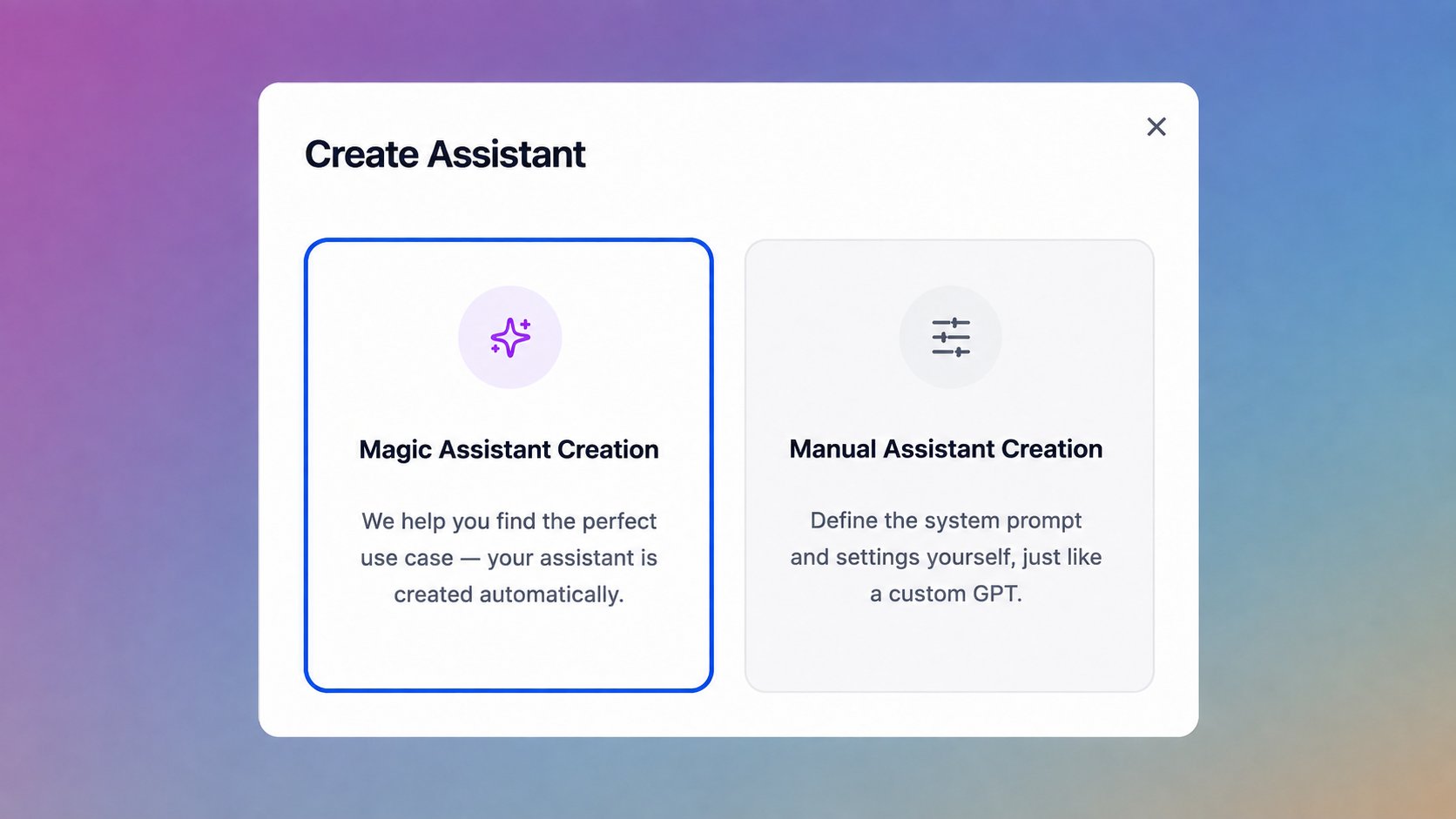
Why It Matters
Assistants are the most reused unit of value in PANTA OS. One person builds the assistant once; everyone with access uses the same configuration afterwards.Specialization
Each assistant is configured for one role, one task, or one audience. Output stays focused.
Consistency
Every user runs the same system prompt and the same knowledge base. Output sounds like one organization, not like a row of individual prompts.
Reuse
A strong assistant built by one person serves the whole team. The Dashboard grid is the shared catalog.
Easy starting points
Quick start actions surface the typical use cases of the assistant as one click prompts on its landing page.

How To Use It
Run an assistant
Find the assistant
Open the Dashboard and switch to the Assistants tab in the grid. Use the tag filter above the grid to narrow the list. The Assistants entry in the sidebar also expands to show the assistants most relevant to you for one click access.
Open it
Click the assistant card. A new chat opens with the assistant’s name in the header.
Use a quick start action or send your own prompt
The quick start actions appear above the chat input. Click one to start with a pre filled prompt, or type your own.
Pick the model if needed
The model selector at the top of the chat applies inside an assistant chat as well. Auto Mode is the default; switch to a specific model when output style matters.
Build An Assistant
Click Create Assistant
The button is at the top right of the Dashboard. Two paths appear: AI Assistant Creation and Manual Assistant Creation.
Choose the path
Pick the magical path for a guided wizard that fills in most of the configuration. Pick the manual path when you already know what you want and prefer the empty configuration screen.
Configure the basics
Set Assistant name, description (up to 100 characters), system instruction, and an icon from the icon picker. The wizard generates these for you; the manual path leaves them empty.
Add quick start actions
Add one or more prompts that appear above the chat input for new users of the assistant. Use the Add button to add each one.
Attach a knowledge base (optional)
Upload up to 5 files (PDF, DOCX, MD, TXT, XLSX, CSV, max 20 MB total) under knowledge base. The assistant uses the files as grounding context for its responses.
Set visibility
Under Privacy settings, the checkbox “Make this assistant public” controls visibility. Private (the default) keeps the assistant visible only to you. Public makes it available to administrators, who can then assign it to specific teams in the Admin Panel.
Save
Click Save changes. The assistant appears in the Dashboard grid and the Assistants sidebar list.
Key Settings or Options
Assistant name
The display name in the Dashboard grid and the sidebar. Be role specific: “Sales Email Drafter for Enterprise Deals” beats “Sales Helper”.
Description
Short description shown under the name. Limited to 100 characters; the editor shows a live counter.
System instruction
The system prompt that defines role, tone, and rules. Markdown formatting supported.
Icon
A visual identifier for the Dashboard grid. The picker includes a set of preset icons plus a Plus button for a custom one.
Quick start actions
One click prompts shown above the chat input on the assistant’s landing page. Each one is a short prompt that gets the user started.
Knowledge base
Up to 5 files (PDF, DOCX, MD, TXT, XLSX, CSV), max 20 MB total. The assistant uses them as grounding context.
Privacy settings
Private (default) or Public. Public means visible across the workspace; administrators can then assign the assistant to specific teams.
Common Assistant Types
The product does not enforce a category for assistants. The patterns below are reusable starting points teams build for themselves. Assistants can also export assets. Exports are available in Text (.txt), Markdown (.md), Word Document (.docx), CSV (.csv), and PDF (.pdf) formats.Drafter
Drafts emails, proposals, and posts in your voice.
Expert
Answers domain questions grounded in your knowledge base.
Reviewer
Reviews drafts against rules: brand, tone, compliance.
Researcher
Pulls information from the web and your uploaded sources.
Translator
Adapts content across languages and registers.
Coach
Walks a user through a structured task or learning path.
Tips and Best Practices
- Use a role specific name. “Sales Email Drafter for Enterprise Deals” is more useful than “Sales Helper”.
- Spell out tone and rules in the system instruction. Do not assume the model will infer them.
- Curate the knowledge base. Quality outperforms quantity for grounded responses; the 5 file cap exists for a reason.
- Keep the quick start actions close to the real use cases. Three relevant prompts beat ten generic ones.
- Test with realistic prompts before changing visibility to public.
Help Center
Where do my assistants live
Where do my assistants live
In the Dashboard grid under the Assistants tab, and in the Assistants section of the sidebar. The Library stores generated and uploaded content, not assistants.
What is the difference between AI and Manual Assistant Creation
What is the difference between AI and Manual Assistant Creation
The magical path is a guided wizard that asks a few questions and generates the configuration. The manual path opens the empty configuration screen directly. Both produce the same assistant; the wizard is faster, the manual path is more controlled.
Can I choose a specific model per assistant
Can I choose a specific model per assistant
No. Assistants do not have their own model setting. When the assistant is opened in a chat, the model selector at the top of the chat controls which model answers, the same way it works in a free form chat.
What visibility options exist
What visibility options exist
Two: Private and Public. Private keeps the assistant visible to you only. Public means workspace wide visibility; administrators can then assign the assistant to specific teams through the Admin Panel.
Can I cap the budget of a single assistant
Can I cap the budget of a single assistant
Not directly. Token limits in the Admin Panel operate at the workspace level with optional per model limits. There is no per assistant cap.
What is the difference between an assistant and a workflow
What is the difference between an assistant and a workflow
An assistant is a chat partner with a configured system prompt and knowledge base. A workflow (also called Conversational Workflow) is a multi step process that asks for inputs step by step and produces a finished artifact. Use an assistant for ongoing chat work, a workflow for repeatable multi step tasks.